What it does
Solo Dual-Cam records you and the scene in front of you in one take. Show what is happening, keep your reaction in the story, and make demos, tutorials, reviews, coaching, affiliate finds, and commentary without chasing a second camera.
 VidFuego
 Two views. One creator.
Solo Dual-Cam records you and the scene in front of you in one take. Show what is happening, keep your reaction in the story, and make demos, tutorials, reviews, coaching, affiliate finds, and commentary without chasing a second camera.
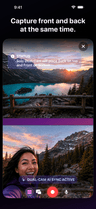
Solo Dual-Cam
Solo Dual-Cam records you and the scene in front of you in one take. Show what is happening, keep your reaction in the story, and make demos, tutorials, reviews, coaching, affiliate finds, and commentary without chasing a second camera.
Put the back camera above the front camera, flip the order, or feature either camera in Picture-in-Picture.
Available from Free
Compare plansThe action stays on screen. So do you. You can turn the iPhone microphone on or off before recording.
Solo Dual-Cam
Talk to your audience while the other camera stays on what you are showing. Two useful views, one take, fewer do-overs, and no awkwardly pretending your reaction happened later.
VidFuego for iPhone
Start free, pull in your friends, and turn one moment into something worth posting. When you want more, take the paid creator tools for a seven-day spin.
Solo Dual-Cam, two-camera Nearby, Remix, 720p exports, and recordings up to 10 minutes—no trial needed.
Eligible new Enthusiast or Pro subscriptions can try paid creator tools free for 7 days.
Made for real ideas
From setup to share
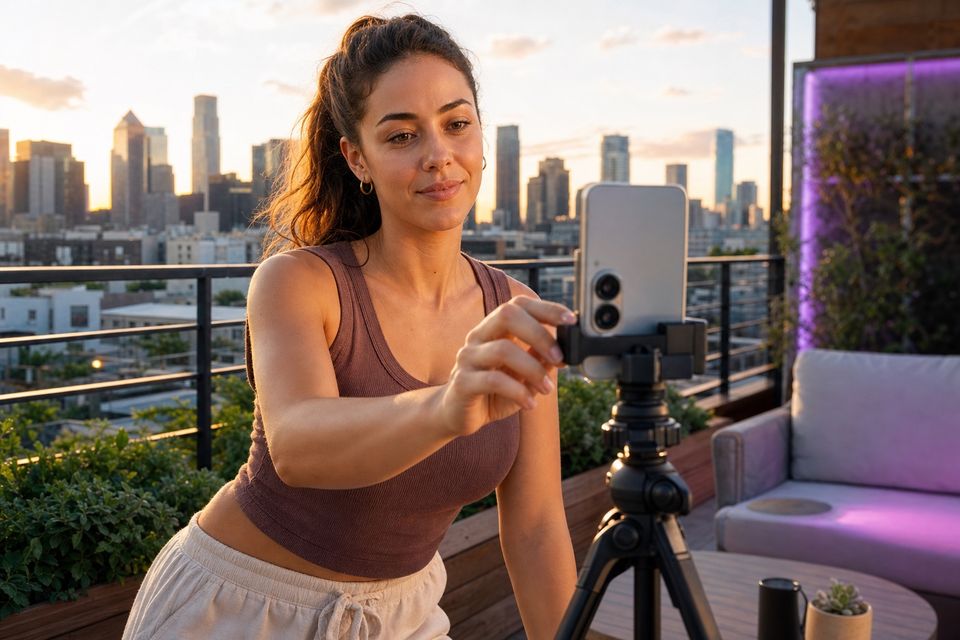
Put the back camera above the front camera, flip the order, or feature either camera in Picture-in-Picture.

Capture your face and the scene together in one synchronized recording.
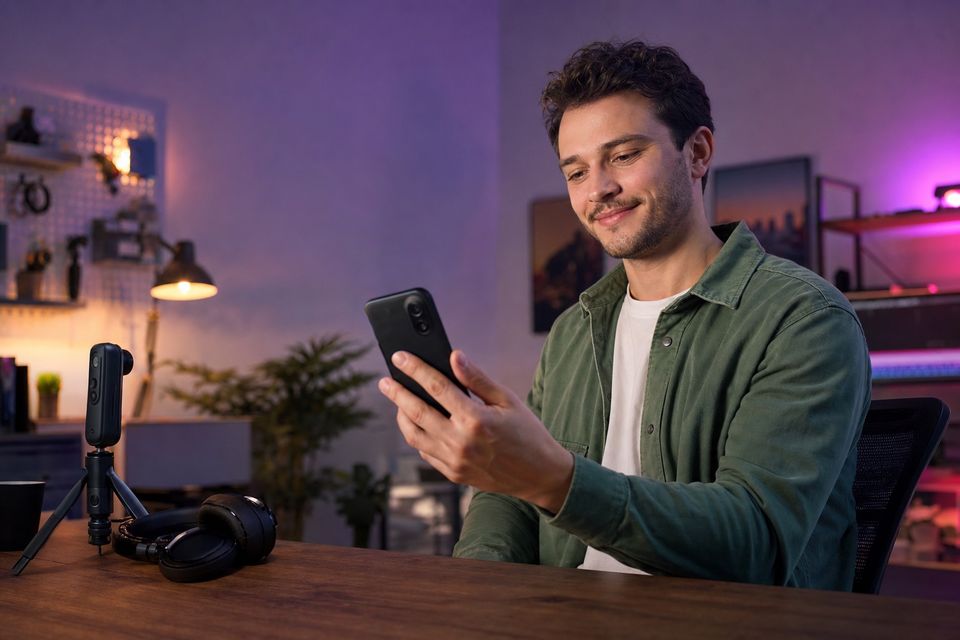
Add a headline, visual style, and—on Pro—custom border color before preview and export.
The action stays on screen. So do you.
Creator recording guides
The front and back cameras face opposite directions. Rehearse what each side will show, check the selected treatment and camera ordering, and inspect a short export before the full take. A camera facing you cannot also show the work surface in front of you.
Check front-camera orientation with readable text rather than trusting the preview alone. Apple's mirroring settings and a third-party app's preview or export behavior may differ.
Read the guidePair explanation with the action it describes, using a stable detail view for the steps that matter. Choose simultaneous panes when viewers need to compare both views directly.
Read the guidePlan storage for original recordings, working files, and exports. Keep verified backups before removing anything from the recording devices.
Read the guideVIDFUEGO
Catch the action, your reaction, and the angle everybody else missed—then pull it together and drop it wherever you post.
Allow Google Analytics to measure website visits and App Store clicks? You can change this choice below at any time.Privacy